Can you auto-reply to comments on Instagram? Not with a public reply — and not with Instagram's own tools at all. Instagram has no native comment auto-reply, and links are not clickable in comments. The fix creators use is comment-to-DM — someone comments a keyword, and the link arrives in their DMs.
That is the flow OneUp runs: a keyword triggers an automated DM with the link, plus a short public reply. This guide covers what Instagram offers natively, how OneUp compares, and the setup.
Quick verdict
Instagram has no native comment auto-reply — and because links are not clickable in comments, the working answer is comment-to-DM: a keyword triggers an automated DM with the link.
- Instagram's native tools only filter comments (Hidden Words) or speed up manual DMs (saved replies, up to four FAQ answers).
- Meta Business Suite's free Comment to message automation is desktop-only, sends one fixed message, and holds up to five exact keywords per rule.
- In OneUp, comment keywords trigger a DM automation on Instagram (and Facebook): the link goes in the DM, with a short public "Sent you a DM" note.
What Instagram offers natively — and what it does not
Inside the Instagram app, the comment tools are filters, not replies. Hidden Words hides comments with common offensive words — on by default — plus advanced filtering and your own custom word list. You can also hide, delete, or restrict comments. That keeps unwanted comments out of sight — none of it answers a question.
The app's reply shortcuts live in DMs. Saved replies work on Business and Creator accounts in the mobile app: hold a message you sent, save it, and give it a shortcut. They save typing, not attention — nothing is sent automatically, and they ignore comments. Professional accounts can also set up four automated FAQ answers — inside DMs, not under posts.
Meta Business Suite, on desktop, goes one step further. In Inbox → Automations you get an instant reply, an away message, keyword replies, and a Comment to message template for comments with keywords you choose. That last one is the free native comment-to-DM. Limits: keyword automations are desktop-only, each rule holds up to five keywords, matching is exact and case-sensitive, and replies go out after 15 minutes unless you answer first. Meta caps it at one DM per comment, within 7 days. What does not exist natively: a public auto-reply, a keyword trigger in the app, or any way to make a link clickable in a comment.
Native vs a tool: the honest comparison
Business Suite is the right start for one keyword and one fixed DM — free, and built by Meta. OneUp earns its place when you run several keywords across several posts, or want DM automation and scheduling in one subscription.
How to set it up in OneUp
Step 1: Connect your Instagram Business or Creator account. In OneUp, go to Accounts and connect Instagram. DM automations need a professional account; OneUp supports accounts not linked to a Facebook Page.
Step 2: Allow access to messages. In Instagram's message settings, turn on Allow access to messages under Connected tools. While it is off, no tool can see your messages.
Step 3: Open DM automations. In Social Inbox, click Automations to open OneUp's automations page. This is separate from the comment auto-replies on TikTok, because the outcome is different: a DM, not a public reply.
Step 4: Choose the account and the trigger. Pick your Instagram account, name the automation and choose the trigger: "Someone comments on a post" or "Someone sends a DM". Pick the comment trigger for comment-to-DM.
Step 5: Add the keyword and write the DM. Add the keyword — for example "PRICE", "LINK", or "GUIDE" — then write the DM, with the link in it, and the short public reply under their comment. OneUp shows a live preview from the commenter's phone.
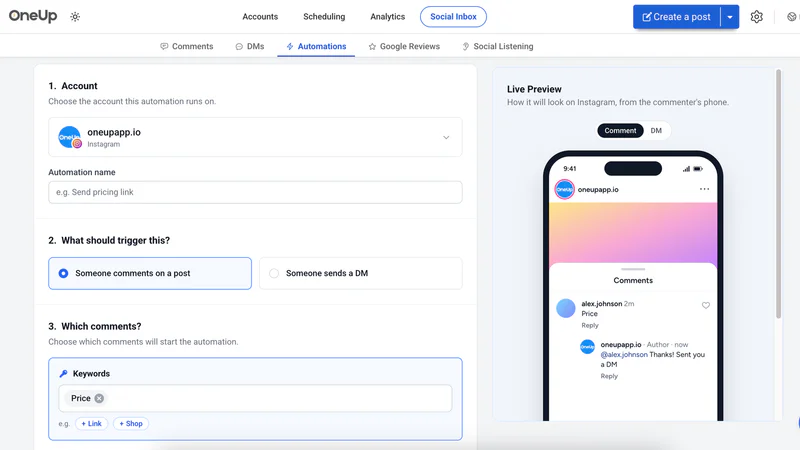
Step 6: Save and test it. Save it, then comment on your own post from a different account — never the account hosting the automation — and check the DM arrives. Automations only fire on new comments that arrive after you create them. Set it up before you publish. Full walkthrough: OneUp's DM Automation Feature.
Example keyword → reply pairs for Instagram
Instagram comments are short, single-word asks — keep keywords to one word. Each pair shows the public note, then the DM:
- LINK → Public: "@username Thanks! Sent you a DM 👍" — DM: "Here's the link: [your link] — any questions, just ask!"
- PRICE → Public: "Sent you the details by DM!" — DM: "It's $29 — checkout link: [your link]."
- GUIDE → Public: "Just sent it to your DMs!" — DM: "Here's the free guide: [your link]. Want the checklist too? Reply YES."
Keep the public note short — a signpost, not the answer — and put one link per DM, never in the public reply, where nobody can tap it. Scheduling plus this DM automation is the Best ManyChat Alternative in 2026 case.
Safety: what not to automate
Only automate comments on your own posts, through Meta's official API. Meta allows one DM per comment, within 7 days, and follow-ups must stay inside the 24-hour window. Never automate comments on other people's posts or DM people who did not comment your keyword — Instagram treats automation for mass outreach as a policy violation.
Keep keywords specific. A generic word like "hi" would fire the DM on nearly every comment. A handful of keywords tied to real questions — LINK, PRICE, GUIDE — with a DM you wrote yourself, is the honest version. Route complaints to a person.
The bottom line
Instagram filters comments and speeds up DMs, and Business Suite sends one fixed DM from a desktop — but none of that is a public auto-reply. Comment-to-DM fits Instagram: keyword in the comment, link in the DM, short note under the comment. Set it up in OneUp in six steps and test it from a second account. ManyChat goes deeper for chatbot funnels — see OneUp vs ManyChat. Try OneUp free for 7 days.
FAQ
Can you auto-reply to comments on Instagram?
There is no public auto-reply for Instagram comments — none native, and OneUp posts none either. The working answer is comment-to-DM: a keyword triggers an automated DM with the link.
Is there a free way to do comment-to-DM on Instagram?
Yes. Meta Business Suite's Comment to message automation is free, set up on desktop under Inbox → Automations. It sends one fixed DM per rule, up to five exact keywords. OneUp adds more automations and scheduling.
Do I need a Business or Creator account for this?
Yes. DM automations run through Meta's official API, which supports Business and Creator accounts only. You also need Allow access to messages turned on.
Will it reply to comments from before I set it up?
No. Automations only fire on new comments that arrive after you create them. Set it up before you publish.