How to Auto-Reply to Comments on LinkedIn
LinkedIn has no native comment auto-reply and prohibits automated comments. How OneUp's keyword auto-replies work on LinkedIn, and when to use them...
Contents
How to Auto-Reply to Comments on LinkedIn
LinkedIn has no native way to auto-reply to comments on your posts. There is no setting, no keyword trigger, and no auto-responder in LinkedIn's own tools — and LinkedIn's rules go further than that: its User Agreement prohibits using bots or unauthorised automated methods to comment, and a LinkedIn Pressroom post from March 2026 states plainly that automated comments posted by a browser extension, script, or third-party tool "aren't allowed on LinkedIn" because they involve no human action. What LinkedIn does offer is suggested replies — tappable reply drafts under some posts that you choose to send yourself. That is manual, not automatic.
So can you auto-reply on LinkedIn at all? OneUp offers keyword-based comment auto-replies on LinkedIn through its official API integration, on your own posts. This guide explains how it works, how to set it up, and — because LinkedIn's rules are stricter than any other network in this series — when you should think twice before turning it on.
Quick verdict
LinkedIn offers no native comment auto-reply and prohibits fully automated comments; OneUp can auto-reply to comments on your own LinkedIn posts by keyword through the official API, but use it sparingly, only on your own posts, and only for replies you would be happy to send yourself.
- LinkedIn has no native auto-reply feature; its suggested replies are manual drafts you choose to send.
- LinkedIn's User Agreement (§8.2) prohibits bots and unauthorised automated commenting, and its March 2026 Pressroom statement says automated comments are not allowed.
- OneUp's keyword auto-replies work on LinkedIn, TikTok, YouTube, Instagram, Facebook, Threads, and Bluesky; on Instagram and Facebook, a comment keyword can trigger a public reply, a DM, or both.
- OneUp automations fire only on new comments from other accounts, after the automation is created, and only on your own posts.
What LinkedIn offers natively — and what it does not
LinkedIn's native toolkit for comments is built around control, not automation. You can limit who can comment on a post, delete comments, and report spam. Under some posts, LinkedIn shows suggested replies — short drafts you can tap to send — but each one still requires you to press send. There is no keyword trigger, no saved auto-reply, and no way to respond while you are away.
The rules matter more here than on any other network. LinkedIn's User Agreement prohibits using bots or other unauthorised automated methods to comment, like, share, or re-share, and its help pages bar third-party software, including browser plug-ins and extensions, that automate activity — with account restriction as the penalty. Its March 2026 Pressroom statement is explicit: automated comments are comments posted using a browser extension, script, or third-party tool, they do not involve human action, and they are not allowed. LinkedIn's official API does let authorised tools read and publish comments, but fully automated commenting without human intervention is not permitted. That is the context for everything that follows: OneUp's feature exists and works through the official API, but LinkedIn's own policy treats automated comments as a violation, so the safe use is narrow, transparent, and low-volume. If you want the fuller picture of how OneUp's automation differs from a chatbot, see Best ManyChat Alternative in 2026 and OneUp vs ManyChat.
How OneUp auto-replies to LinkedIn comments
OneUp's Automations page in the Social Inbox watches your connected LinkedIn account for new comments on your posts. When a comment contains a keyword you chose, OneUp publishes the reply you wrote for that keyword. The automation only fires on comments that arrive after you create it, only on comments from accounts other than your own, and only on posts where you are the author. Unlike the Facebook and Instagram flows — where a comment keyword can trigger a private DM or a public reply, as covered in our guide to auto-replying on Facebook — LinkedIn replies are public comments on your post.
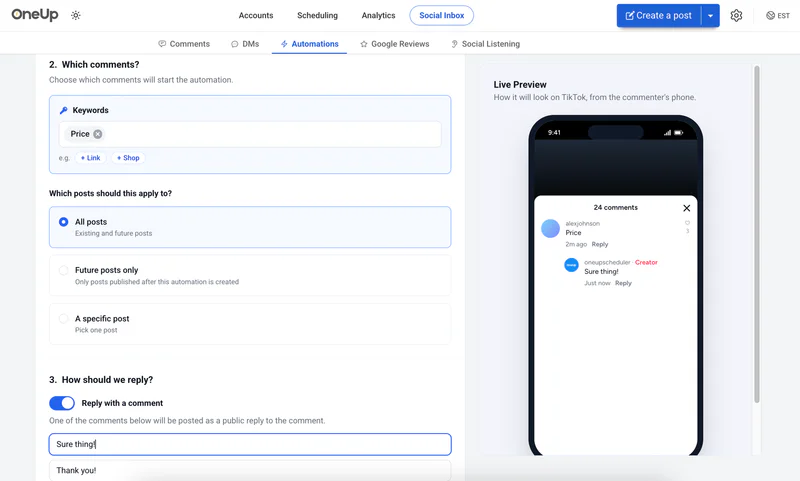
Setting it up in OneUp
- Connect LinkedIn. In OneUp, open the Accounts page and connect your LinkedIn profile or Company Page if you have not already.
- Open Automations. Go to Social Inbox → Automations, where OneUp lists the networks that support keyword comment replies — TikTok, YouTube, Instagram, Facebook, Threads, Bluesky, and LinkedIn.
- Create an automation for LinkedIn. Choose your LinkedIn account and the post (or posts) the automation should watch. Start with one high-traffic post, such as a lead-magnet or hiring post, rather than every post you publish.
- Add your keyword trigger. Enter the exact word or phrase that should trigger the reply — for example, "guide" or "template". Keep triggers specific: a broad word like "great" will fire on comments that do not need a reply.
- Write the reply. Write the exact reply OneUp will post. Keep it short, specific to the keyword, and in your own voice — a generic "Thanks for commenting!" on every post is exactly the kind of automation LinkedIn's rules are aimed at.
- Save and test. Save the automation, then leave a test comment from a second account containing the keyword and confirm the reply appears. Automations never reply to comments posted before they were created, so only new comments will trigger them.
The same setup works on the other networks in this series — YouTube and TikTok are covered in our YouTube auto-reply guide and TikTok auto-reply guide — but the rules are not the same everywhere, and LinkedIn is the strictest of the five.
Example keyword → reply pairs for LinkedIn
LinkedIn comments are professional and specific, so the triggers should be too:
- "guide" → "Thanks — the guide is linked in the first comment below, and I'm happy to answer questions about it here."
- "template" → "Happy to share it — the template is linked in my profile, and I walk through how to use it in the post above."
- "hiring" → "Yes, we're hiring for this role — the job post is linked in my profile, and you can apply directly there."
Each of these replies is useful, specific, and something you would plausibly type yourself. That is the test: if you would not send the reply manually, do not automate it.
Safety: use it narrowly, or not at all
LinkedIn's rules make this the one network in this series where the safety section is not a formality. Four rules:
- Only your own posts. Automate replies only on posts you authored. Never automate comments on other people's posts — that is spam on every network, and on LinkedIn it is also a policy violation.
- Keep it sparse and specific. One keyword trigger on one lead-magnet post is defensible; auto-replying to every comment on every post is not. Broad triggers and generic replies are the pattern LinkedIn's March 2026 statement describes.
- Use the official API only. OneUp's auto-replies run through LinkedIn's official API. Never use browser extensions, scripts, or unofficial tools to automate LinkedIn comments — LinkedIn explicitly prohibits them and restricts accounts that use them.
- Monitor and switch off. Check the replies your automation sends, and turn it off if comments start looking automated. You are responsible for what is posted on your account, even when a tool posts it.
If that caution makes the feature sound marginal, that is the honest answer for LinkedIn: it is a narrow tool for a specific job — catching the "send me the guide" comments on a post you are actively promoting — not a way to automate your LinkedIn presence.
FAQ
Can LinkedIn auto-reply to comments natively?
No. LinkedIn has no native auto-reply feature. It offers suggested replies you send manually, and its rules prohibit fully automated comments.
Is it against LinkedIn's rules to auto-reply to comments?
LinkedIn's User Agreement prohibits bots and unauthorised automated commenting, and its March 2026 Pressroom statement says automated comments are not allowed. OneUp's feature works through the official API on your own posts, but you should use it sparingly and stay within LinkedIn's current policy.
Does OneUp auto-reply to LinkedIn comments?
Yes. OneUp offers keyword-based comment auto-replies on LinkedIn, YouTube, TikTok, Threads, and Bluesky. On Instagram and Facebook, a comment keyword can trigger a public reply, a DM, or both.
Will OneUp reply to comments posted before I set up the automation?
No. Automations fire only on comments that arrive after the automation is created, and only on comments from accounts other than your own.
Bottom line
LinkedIn is the strictest network in this series: no native auto-reply, and a written policy against automated comments. OneUp can still help on a narrow job — replying to a specific keyword on your own high-traffic post, through the official API — but it is not a tool for automating your LinkedIn presence. Use it for the "guide" and "template" comments on one post, keep the replies specific, and monitor what it sends. Try OneUp free for 7 days and set up your first automation on a single post.
OneUp
OneUp is a social media management tool. Scheduling, cross-posting, analytics, social inbox, DM automations, social listening, and API & MCP, all in one place.
Visit Site