Can you auto-reply to comments on YouTube? Not with YouTube's own tools. YouTube Studio will suggest replies — including AI-drafted ones in your tone — but every suggestion still needs you to click Reply. To answer automatically, you need a tool on YouTube's official API that watches for keywords and posts a public reply.
That is what OneUp does: keyword-triggered auto-replies on your own videos, through YouTube's official API. This guide covers what YouTube offers natively, how the tool route compares, and the setup steps — plus the safety rules.
Quick verdict
YouTube Studio suggests replies but posts none automatically, so auto-replies need a tool on YouTube's official API — OneUp posts a public keyword-triggered reply under matching comments on your own videos.
- YouTube's reply suggestions, including AI-upgraded ones in your own tone, still need you to select one and click Reply on every comment.
- YouTube's comment settings only hold or filter comments — they never answer one.
- In OneUp, setup takes minutes: connect YouTube, open Social Inbox → Comments + Automation, and set a keyword with reply variations — OneUp scans for matches every 3 hours.
What YouTube offers natively — and what it does not
YouTube Studio's closest feature is comment reply suggestions. In the Community tab you will see suggested replies under some comments. Some are an upgraded, AI-generated version in your own tone, based on your recent replies. Suggestions are optional and editable — but you still select one and click Reply yourself, and they do not appear for all comments. YouTube's help page calls this replying "more easily and quickly," not automatically.
YouTube's other native comment tools are filters, not replies. Comment settings let you turn comments on, pause them, or turn them off, with moderation at None, Basic (hold potentially inappropriate comments), Strict (hold a broader range), or Hold all. A blocked-words list holds matching comments for review for up to 60 days. All of this controls what appears under your videos — none of it answers a single comment.
What does not exist natively: keyword triggers, automatic replies, or any reply-to-all. If a tutorial blows up overnight and three hundred people ask "where is the link?", the backlog waits for you in the morning — three hundred clicks of Reply. That gap is why a tool route exists — and note it is a different job from Instagram, where the same keyword system sends a DM instead, as covered in How to Auto-Reply to Comments on TikTok.
Native vs a tool: the honest comparison
On a small channel, YouTube's native suggestions are genuinely useful: a dozen comments a day, and the AI suggestions in your tone save real typing time. The break point is volume — the same three questions arriving hundreds of times, at hours when you are not at your desk. That is when a keyword rule earns its keep, answering the predictable questions and leaving you the interesting ones. The general setup is covered in How to Auto-Reply to Social Media Comments. And on Instagram the comparison is different — comment keywords trigger a DM, not a public reply — which is why OneUp is a genuine Best ManyChat Alternative in 2026 for creators who want scheduling plus DM automation in one tool.
How to set it up in OneUp
Step 1: Connect your YouTube account. In OneUp, go to the Accounts page and connect your YouTube channel — only comments on your own videos can be auto-replied to.
Step 2: Open the comment automation settings. In Social Inbox, click Comments + Automation, find your YouTube account, open the three-dot menu, and select Comment Labeling and Auto Replies.
Step 3: Set your trigger keywords. Choose the words that trigger a reply — for example "LINK", "TIMESTAMPS", or "GEAR". Keep keywords to the questions your audience actually asks.
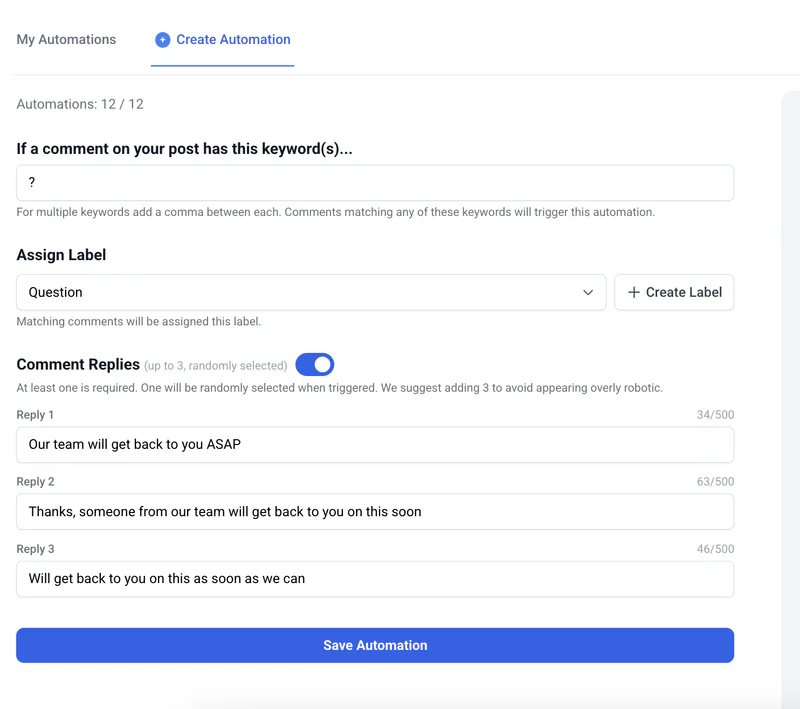
Step 4: Write your auto-replies. Add the reply for each keyword, plus up to three variations if you like — OneUp picks one at random, so replies do not all read identically. Each reply can be up to 500 characters, and links go directly in the public reply under the comment. You can also assign labels — for example, "Question" for anything with a question mark — and sort by them in the Comment Inbox. Click Save Automation.
Step 5: Test it. Comment on your own video from a different account — never the account hosting the automation — with one of your keywords, and check the reply appears. OneUp scans for matches every 3 hours, so allow up to 3 hours for the first reply. Set it up before you publish, so it catches comments from the start.
Example keyword → reply pairs for YouTube
YouTube comments ask follow-ups, so replies can run to a sentence or two:
- LINK → "It's linked in the description and the pinned comment — here it is: [your link]."
- TIMESTAMPS → "Timestamps are in the description — the part you're asking about starts at 04:12."
- GEAR → "I shot this on [camera] — the full gear list is linked in the description."
Write replies that read like you. Never auto-reply to complaints or sensitive comments — route those to a person.
Safety: what not to automate
Only automate comments on your own channel, through YouTube's official API. YouTube's policies prohibit spam and fake engagement, and automated replies on other people's videos fall squarely on the wrong side of that line. Keep it narrow: a handful of keywords tied to real questions your audience asks, on your own videos, with your own replies.
Never auto-reply to every comment: a rule that fires on "great video" or "thanks" adds noise and teaches viewers your replies are automated. Never use browser extensions or unofficial scripts on YouTube — if a tool is not going through the official API, it is a risk to the channel, not a shortcut. For where a scheduler's keyword automation ends and a dedicated chatbot platform begins, see OneUp vs ManyChat.
The bottom line
YouTube will suggest replies and hold unwanted comments — but it will not answer anyone for you. If "where is the link?" is the question your comments keep asking, a keyword auto-reply through YouTube's official API answers it while you sleep, as a public reply under the comment. Set it up in OneUp in five steps and test it from a second account. Try OneUp free for 7 days.
FAQ
Can you auto-reply to comments on YouTube?
Not with YouTube's native tools, which only suggest replies you post by hand. A tool on YouTube's official API can post public replies under matching comments on your own videos.
Does YouTube Studio have an auto-reply feature?
No. Studio has comment reply suggestions, including AI-upgraded ones, but you choose a suggestion and click Reply for each comment.
Can I auto-reply to comments on other channels' videos?
No. OneUp's auto-replies run only on your own channel, through YouTube's official API — automating comments on other videos violates YouTube's spam and fake-engagement policies.
How fast do OneUp's YouTube auto-replies go out?
OneUp scans for matches every 3 hours, so allow up to 3 hours for a reply to appear.