How to Schedule Posts to a Personal Facebook Profile (and Everywhere Else) at the Same Time
Scheduling to a Facebook Page is simple. Scheduling to a personal Facebook profile is not — Facebook only allows direct scheduling tools to post to personal profiles that are switched into "Professional Mode." If your profile isn't in that mode, you need a workaround, and getting that workaround to also reach Instagram, YouTube, TikTok, and everywhere else takes one more step on top.
The workaround: Instagram's "Also share on" feature
If your personal Facebook profile is linked to an Instagram account (personal, Creator, or Business), Instagram has a native cross-posting toggle that solves this:
Schedule your post through the Instagram app, up to 30 days in advance
Toggle on "Also share on" and select your personal Facebook profile as a destination
Your post publishes directly to both Instagram and your Facebook profile — no separate manual step, no mobile notification needed
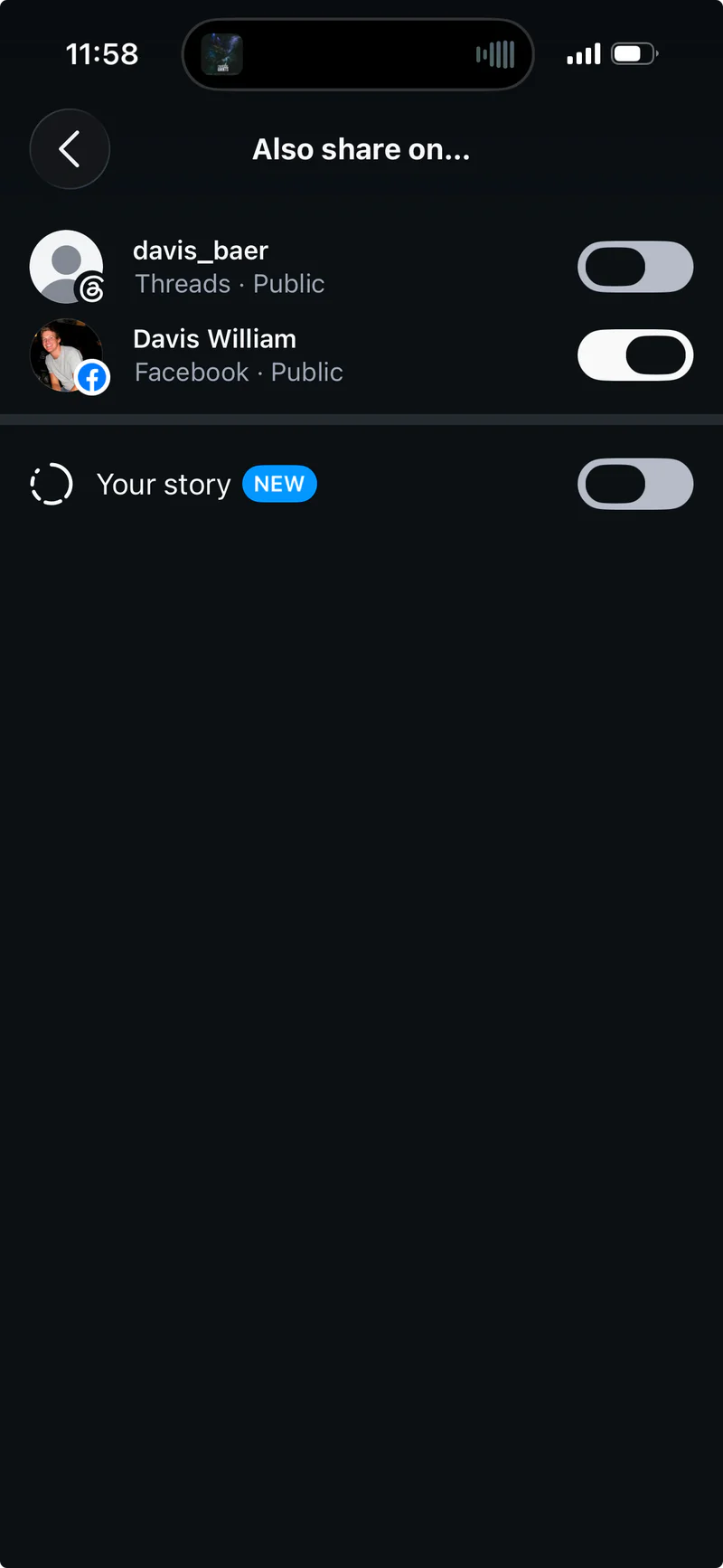
If you don't want your main Instagram content mixing with what goes to your personal Facebook profile, a simple option is creating a dummy Instagram account used solely to trigger the cross-post.
One thing to check first: your personal Facebook profile needs to be linked in the Meta Accounts Center, under Connected Experiences → Sharing across profiles. If your profile isn't showing up as an option in "Also share on," that's usually why.
Adding everywhere else into the mix
The Instagram trick covers Instagram and your personal Facebook profile. To also reach YouTube, TikTok, X, LinkedIn, and your other accounts with that same post, OneUp's crossposting feature picks up from there — as long as the Instagram account you're posting from is a Business or Creator account.
Here's how the two pieces fit together:
You create and publish a post in the Instagram app
Instagram's "Also share on" pushes it to your personal Facebook profile
OneUp's crossposting workflow automatically picks up that same post and publishes it to YouTube, TikTok, X, LinkedIn, and any other accounts you've set up in the workflow

In other words: the personal Facebook profile piece is handled entirely by Instagram's own sharing feature, and OneUp handles distributing that same content to everything else.
Getting started
Set up your Instagram "Also share on" connection in the Meta Accounts Center first, then configure a OneUp crossposting workflow with your Instagram Business or Creator account as the source and your other platforms as destinations.
Ready to post everywhere — including your personal Facebook profile — from one action? Get started with OneUp.