This post goes over how to schedule X threads(aka Tweetstorms)
On X and X Pro you can schedule single tweets.
However, X does NOT provide a way to schedule X threads on X itself.
So how can you schedule X/Twitter threads? You can use OneUp
How to schedule X threads with OneUp
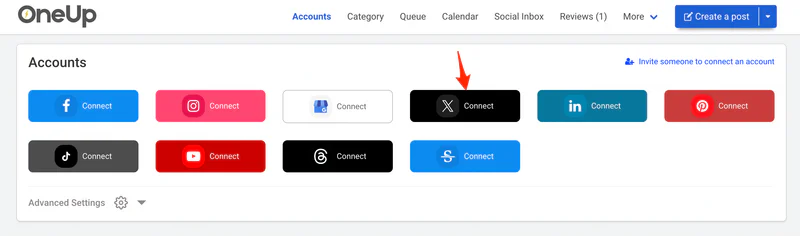
- Connect your Twitter account to OneUp
- Click “Schedule X Threads“
- Select your X account
- Start creating your X thread
- Click “+” to add another part to your X thread
- Post it now, or schedule your X thread for the future
Here are those steps with screenshots:
First connect your X/Twitter account:
To create your X thread in OneUp, click “Schedule Twitter Threads” in the Schedule Post dropdown.

Then start creating your X thread:

You can preview how your X thread will look while you are creating it.
To add another part to your X thread, click the blue “+” button. You can add as many parts to your thread as you want, and you can even insert new tweets in the middle while scheduling your X thread.
Another cool feature in OneUp – you can paste in a long text and it will automatically split your long text into individual tweets:

which becomes…

And just like on X, you can add up to 4 images, a GIF, or a video to any of the tweets in the thread:

You can also add links to your X thread, and they will post with the link preview.
You can add Alt Text to your images, and you can @mention accounts using OneUp. Just type “@” and some letters and you will get suggested accounts:

Once you’re finished, you can either schedule your X thread, or save it to your Drafts folder.
Here is OneUp’s website if you want to schedule X threads: www.oneupapp.io
Here’s a video showing how to schedule X threads using OneUp: