How to Switch from ContentStudio to OneUp Without Losing Your Queue
Move your ContentStudio queue to OneUp without losing a post: what exports, what doesn't, and the six steps to switch in an afternoon...
Contents
Switching from ContentStudio to OneUp is mostly a data-moving exercise, not a rebuild. ContentStudio is capable, but if OneUp's flat per-account pricing, 12-network reach, or evergreen engine fits better, the move takes an afternoon. The catch: ContentStudio has no one-click export for your scheduled queue, so the transfer is a spreadsheet job. Follow the steps below in order and nothing goes missing.
Quick verdict
ContentStudio's queue moves to OneUp in an afternoon via CSV — but export your media and queue before you cancel, because ContentStudio deletes account data 90 days after your subscription ends.
- ContentStudio Standard costs $19/month billed annually ($29 month to month) for 5 social accounts; OneUp Basic costs $15/month billed annually.
- ContentStudio has no self-serve export of scheduled posts — its Media Library export is a CSV of media links, and the full queue comes out through its API.
- OneUp covers 12 posting networks including Snapchat and Discord, which ContentStudio's published network list does not include.
- Post approvals cost a step up on both tools: ContentStudio's Advanced plan ($49/month annually) and OneUp's Intermediate plan ($48/month annually).
Before you cancel: what ContentStudio lets you take with you
Start here, because the order matters. ContentStudio's pricing FAQ states that account data is retained for up to 90 days after a subscription expires and is then permanently deleted. Do the export while the account is still active.
What comes out easily: your media. ContentStudio's Media Library has a bulk export that emails you a CSV of the media URLs you selected — a spreadsheet of links, not a folder of files. Download the actual files those links point to before the 90 days run out, or the links die with the account. What does not come out with one click: your scheduled posts. ContentStudio documents no Planner export, so the queue comes out through its API (available on every plan, including Standard) or by copying posts from the Planner into a spreadsheet by hand. For a few dozen posts, the manual route is an hour's work; for hundreds, use the API.
Also export anything else you will miss: approval history and client sign-offs stay behind, analytics reports should be downloaded as PDFs, and AI Studio brand voice settings and automation recipes do not transfer. Note your automation recipes so you can rebuild the ones that matter.
What transfers to OneUp, and what doesn't
Transfers cleanly: post text and captions, images and videos (once downloaded), scheduled dates and times, destination URLs, first comments, and hashtags. OneUp's bulk upload accepts a CSV, so a well-built spreadsheet lands almost as-is. Your social accounts reconnect in minutes through OneUp's official API connections — an authorization click, not a credential handover.
Transfers with rework: per-network customizations — re-check each variant after import, since OneUp handles per-network customization in its own composer. Evergreen campaigns need rebuilding too: ContentStudio's automation recipes and OneUp's repeating posts do the same job, but the rules live in different places, so recreate each evergreen post as a repeating post in OneUp.
Does not transfer: engagement history, past analytics, approval audit trails, AI auto-reply history, and content discovery feeds. OneUp starts tracking performance from the day you connect a profile, so keep your old analytics exports.
How to switch from ContentStudio to OneUp in 6 steps
1. Audit your queue. In ContentStudio, open the Planner and list every scheduled post by workspace, network, and date. Decide what is still worth publishing. Anything already published stays published; only the future queue needs moving.
2. Export your media and queue. In the Media Library, run Bulk Actions → Export as CSV and download every file the CSV points to. Then pull your scheduled posts through the API, or copy them into a spreadsheet with columns for date and time, message, image URL, link, first comment, and post type — ContentStudio's own bulk template uses exactly those columns.
3. Start OneUp's 7-day free trial and connect your accounts. Every OneUp plan includes a 7-day free trial. Connect the same accounts in the same order, so your spreadsheet mapping stays obvious.
4. Bulk-upload your queue. In OneUp, use bulk upload to import your CSV. Map the date, message, media, and link columns, preview the import, and check the first few posts in the composer before scheduling the rest.
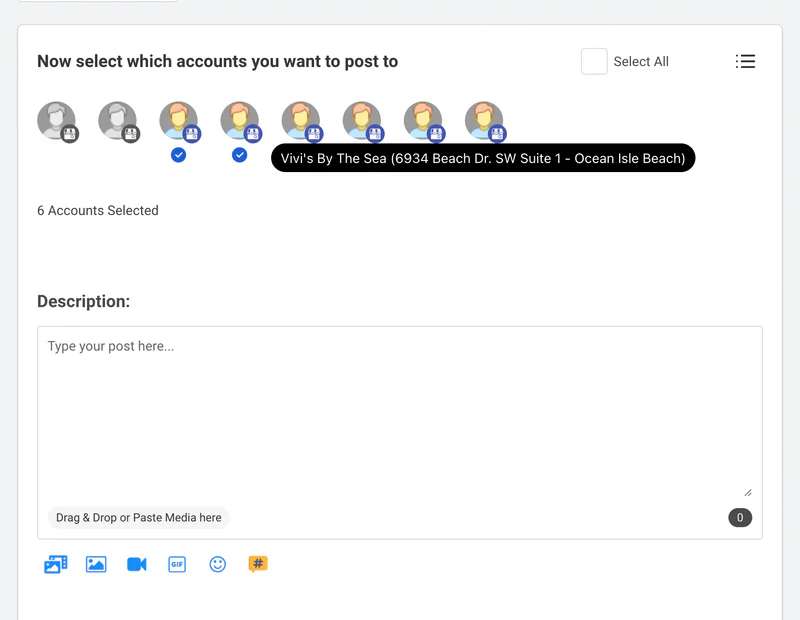
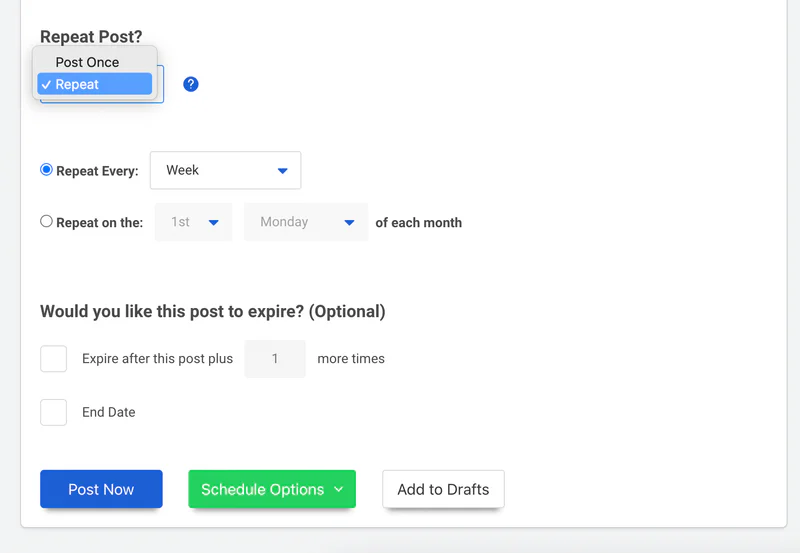
5. Rebuild your evergreen posts as repeating posts. Take your best-performing ContentStudio evergreen content and set it to repeat in OneUp. A repeating post re-shares on the interval you choose, and you can set an expiry so a seasonal post stops itself.
6. Run both tools in parallel for one week, then cancel ContentStudio. Let OneUp publish the next week's posts while ContentStudio still holds the old queue as a backup. Once the first OneUp posts go out cleanly, cancel — your exports are already safe.
ContentStudio vs OneUp at a glance
Prices checked November 17, 2026 on contentstudio.io/pricing and oneupapp.io/price.
Where ContentStudio wins
Be honest about this before you move. ContentStudio's AI Studio is deeper than OneUp's AI captions: it generates text, images, and video clips, and it learns a reusable brand voice. Its content discovery — curated feeds of trending articles in your niche — has no equivalent in OneUp, and if your workflow is "find something worth sharing, then schedule it," you will feel that gap. It also bundles competitor analytics and AI auto-replies (100 a month on Advanced). If those are the features you open every day, stay. If you mostly schedule, crosspost, and recycle your own content, OneUp's lower per-account cost and wider network list are the better trade. For the full head-to-head, read ContentStudio vs OneUp, and 7 Best ContentStudio Alternatives in 2026 covers the rest.
FAQ
Can I move my ContentStudio scheduled posts to OneUp automatically?
No. There is no direct importer. Export your queue — through ContentStudio's API or a manual spreadsheet — and import it into OneUp with bulk CSV upload; most teams finish in an afternoon.
Will my already-published posts disappear when I cancel ContentStudio?
No. Posts already published stay live on those networks. Cancelling only stops future scheduling and, after 90 days, deletes your ContentStudio account data — which is why you export media and reports first.
Does OneUp support the same networks as ContentStudio?
OneUp supports 12 posting networks: Facebook, Instagram, X, LinkedIn, TikTok, YouTube, Pinterest, Threads, Bluesky, Snapchat, Discord, and Google Business Profile. ContentStudio's published list covers the major networks but not Snapchat or Discord, so a move widens your reach. See how OneUp's pricing compares for the cost side.
What happens to my evergreen content?
It needs rebuilding as repeating posts in OneUp: pick the post, set it to repeat weekly (or on your interval), and optionally set an expiry. The guide to setting up repeating evergreen posts in OneUp walks through the settings, and bulk uploading posts with OneUp covers moving a large queue at once.
Ready to move? Start OneUp's 7-day free trial, connect your accounts, and import your first batch.
OneUp
OneUp is a social media management tool. Scheduling, cross-posting, analytics, social inbox, DM automations, social listening, and API & MCP, all in one place.
Visit Site