How to Switch from Zoho Social to OneUp Without Losing Your Queue
Switch from Zoho Social to OneUp in an afternoon: export or capture your queue, reconnect accounts, and refill with bulk upload...
Contents
How to Switch from Zoho Social to OneUp Without Losing Your Queue
Most people leave Zoho Social because the per-brand bill multiplies per client, they need networks it doesn't cover (Discord, Facebook Groups, personal Profiles), or they want recurring posts and API access without a higher tier. The switch is a rebuild, not a transfer: no scheduler can import another tool's queue, because no export format moves posts between tools. What does move is the thinking behind your queue: slots, repeat patterns, and the posts, captured as a list.
Quick verdict
You cannot import your Zoho Social queue automatically, but rebuilding it takes an afternoon: capture your queued posts as a spreadsheet (Premium users can export a CSV), reconnect your accounts, refill with bulk upload, and run both tools in parallel until the queue drains.
- Time needed: 2 to 4 hours of active work, plus a 1–2 week parallel run.
- The one rule that prevents double-posting: schedule everything new in OneUp only.
- Cost at 5 accounts: Zoho's business plans cover one brand each, so 5 brands means 5 subscriptions or an Agency plan; OneUp Basic is $15 a month billed annually for 5 accounts.
- What you gain: flat per-plan pricing, recurring posts and crossposting on every plan, plus API and MCP access. Zoho lists no API on its pricing page; its integrations are Zoho CRM and Desk.
What transfers and what doesn't
Before you start
Capture every queued post with its date and time, note your CustomQ slots and repeat rules, check your renewal date, and count accounts.
Step 1: Capture your Zoho Social queue (30–45 minutes)
Premium users get a head start: Export Posts exports scheduled posts as a bulk CSV. Otherwise, record every scheduled post (text, link, media, time) in a spreadsheet, one row per post, with its slot and repeat rule. That list is the spec for rebuilding your queue.
Step 2: Connect your accounts in OneUp (20–30 minutes)
Connect the same accounts in OneUp: Facebook Pages, Groups, and personal Profiles, Instagram (including accounts not linked to a Facebook Page), X, LinkedIn, TikTok, YouTube, Pinterest, Threads, Bluesky, Snapchat, Discord, and Google Business Profile. That covers most of what Zoho supports, plus Discord, Facebook Groups, and personal Profiles. Gaps the other way: Zoho also covers Mastodon, WhatsApp Business, Telegram, and Arattai; keep a core channel in Zoho.
Connecting leaves Zoho connected, so the parallel run works; check each connection.
Step 3: Recreate your posting slots as timeslots (15–20 minutes)
In Zoho you set up CustomQ slots (a posting timetable your queue fills), with SmartQ suggesting best times on Premium. In OneUp, the equivalent is Timeslots. Recreate each slot, then note which posts repeated and how often. Our Zoho Social vs OneUp comparison explains both models.
Step 4: Refill the queue with bulk upload (30–60 minutes)
Turn your Step 1 spreadsheet or Premium CSV export into a bulk upload: OneUp loads many posts at once from a CSV, Google Drive, or Dropbox; see our bulk upload walkthrough for the format. Posts already queued in Zoho stay there.
Step 5: Recreate repeat posting and set up crossposting (20 minutes)
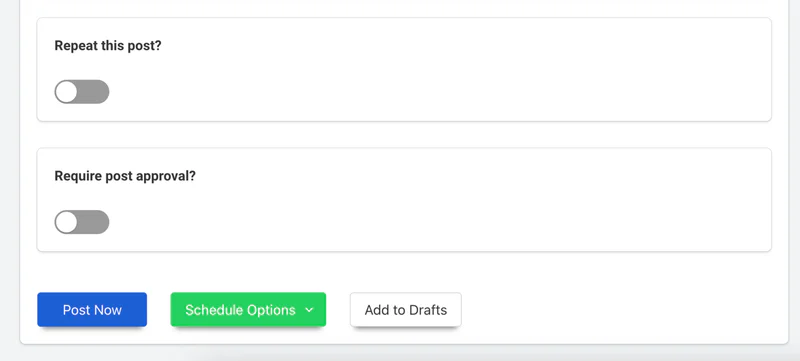
Zoho's repeat posting starts on Professional, SmartQ on Premium; OneUp's repeating posts are on every plan. Rebuild evergreen posts as repeating posts, then set up crossposting so an Instagram Reel flows to TikTok and YouTube Shorts. See our guide to recurring evergreen posts.
Step 6: Rebuild approvals and inbox if you use them (10 minutes)
Only on Premium, the only plan with approvals and an inbox. In OneUp, approvals start on Intermediate ($48 a month billed annually), not Basic. The social inbox is on every OneUp plan.
Step 7: Run both tools in parallel until Zoho's queue drains (1–2 weeks)
From today, everything new goes in OneUp only and everything queued in Zoho stays there.
Step 8: Cancel Zoho Social before your renewal date
Once Zoho's queue is empty and OneUp has published cleanly, cancel before your renewal date (after downloading final analytics). Typical account: 2 to 4 hours; teams with approvals, a day. For the broader picture, see our 7 best Zoho Social alternatives roundup and pricing comparison.
Zoho Social vs OneUp at a glance
Prices checked November 2026.
Where Zoho Social wins
Zoho Social is the cheapest way to run one brand. Its free plan (1 brand, 6 channels, 1 member) is a real free tier, and Standard at $10 a month billed annually undercuts OneUp's $15 Basic. If you already live in Zoho CRM or Desk, the native integration is a genuine reason to stay: leads, contacts, and tickets flow from social with no third-party connector, and Premium's monitoring dashboard plus WhatsApp and Telegram cover channels OneUp doesn't. For a solo user with one brand in the Zoho ecosystem, staying is defensible; switch when a second brand or flat pricing changes the math.
FAQ
Will my scheduled Zoho posts still publish after I connect the same accounts to OneUp?
Yes. Connecting an account to OneUp leaves Zoho untouched, so queued posts keep publishing.
Can OneUp import my Zoho Social queue automatically?
No. Even Premium's CSV export produces a file, not a live queue; posts must be rebuilt via bulk upload, though the export speeds up Step 1.
Will I double-post during the switch?
Only if the same post is in both tools. Keep new posts in OneUp and the old queue in Zoho.
What happens to my Zoho analytics?
Your history stays in Zoho while your account exists. Export the reports you care about before you cancel; Standard keeps only 15 days.
Start the switch today
OneUp starts at $15 a month billed annually for 5 accounts, with a 7-day free trial. Start your free trial and follow the eight steps.
OneUp
OneUp is a social media management tool. Scheduling, cross-posting, analytics, social inbox, DM automations, social listening, and API & MCP, all in one place.
Visit Site